Table of Content
How Do You Reach the Correct PisoFi Screen?
Join the network named on the PisoFi machine and open its sign-in notification or advertised local address. The customer interface offers payment, remaining time and controls such as Pause or Use Wipass, depending on the setup.
PisoFi’s 2020 installation instructions use 10.0.0.1/admin for the owner dashboard. Customers who reach that password prompt should return to the machine’s customer address. Registering on the public PisoFi website is also separate from buying access at a local hotspot.
What Do Pause Limits Mean on PisoFi?
PisoFi’s documented Portal → WiFi Options settings include pause availability, a maximum time allowed to pause and pause validity. They also control automatic pause on disconnection and resume on reconnection. Ask which rules apply to your offer before relying on WiFi disconnection to preserve it.
- Read the balance and validity. Establish how long the remaining allowance stays usable.
- Select Pause. Wait for the session to show the change before leaving.
- Check the state on return. Use the displayed resume or connection control if the session is still paused.
These setting names come from PisoFi’s published feature documentation. Their position or appearance can differ by version and theme.
How Do You Use Wipass Without Losing Track of Your Credit?
WiPass is PisoFi’s voucher feature. Buying a voucher, using one and converting existing minutes are separate actions. Before starting, read the allowance, expiry and pause conditions attached to that voucher; converting time does not automatically make it usable on every PisoFi machine.
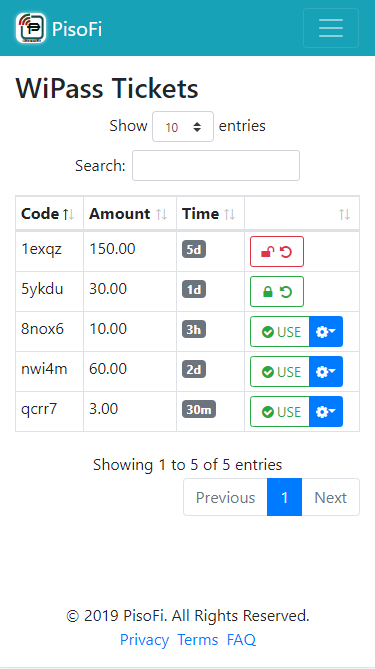
In the full-version 4.8.6 release, Use Wipass opens the voucher list within the portal. Older interfaces use a separate WiPass Tickets screen. The vendor’s older example below shows Code, Amount and Time columns with a green USE button beside available tickets.
How Do You Redeem a WiPass Voucher?
- Connect to the issuing hotspot. Use the WiFi network specified by the seller. Make sure the ticket is for WiFi access; PisoFi also supports separate desktop vouchers.
- Open Use Wipass. If your voucher is listed, match its code and read its allowance before selecting it. If the portal instead requests a code, enter the code supplied with the purchase.
- Use the selected ticket. In the pictured list, choose the green USE button on that ticket’s row. When a protected voucher asks for a password, use the voucher password supplied by the seller. Your router administrator password or wallet PIN does not belong here.
- Read the result in your session. After the portal accepts the ticket, find its time or data allowance and expiry. PisoFi can keep different purchases in separate sessions, so an unchanged counter on an older session does not by itself mean redemption failed.
- Check that you can browse. Select the intended session if more than one is offered, follow any connection prompt, and open a website. Keep the ticket details until the allowance is visible and access works.
How Do You Convert Unused Time Into WiPass?
Start with the session whose minutes you want to save. PisoFi’s published customer interface labels its conversion control CONVERT. The owner can disable this feature or set a minimum amount of remaining time, so its presence on another machine does not guarantee it is available on yours.
- Note your starting allowance. Read the session’s remaining time and expiry. If several purchases are shown, identify the one being converted.
- Open CONVERT when available. Read the offer or confirmation that appears. If it lets you choose an amount, check that amount and any minimum before continuing. Stop if it is unclear which session or allowance will be used.
- Confirm only the intended conversion. Follow the confirmation shown by that installation. Dialog wording varies; do not assume a conversion succeeded simply because the dialog closed.
- Find and keep the resulting ticket. Open Use Wipass or the older WiPass Tickets list and look for the newly created voucher. Save its code and any voucher password privately, then compare its allowance with the time left in the original session.
If time was deducted but no ticket appears, keep both the before-and-after details and ask the operator to trace the conversion. Repeating it could make the records harder to follow. A screenshot should hide any code or password before it is shared publicly.
What If a WiPass Code Is Rejected?
- The code is not recognized: compare it character by character with the original and confirm that you are connected to the issuing operator’s hotspot.
- A password is requested: ask the seller for the voucher password. PisoFi supports both protected and unprotected tickets.
- The voucher is unavailable: ask the owner to check whether it was used, expired or restricted. The sharing settings can also affect who may use a ticket.
- USE succeeds but the timer looks unchanged: inspect the available sessions before retrying. Auto-merge settings determine whether purchases are combined or kept separate.
- CONVERT is missing or refused: ask the owner to check conversion permission and the minimum time, rather than buying more time just to reveal a button.
For owners, Portal → WiFi Options contains the documented WiPass and conversion settings. Check the selected package as well: PisoFi’s release notes describe separate package permissions for pausing and converting. Piso WiFi vouchers and remaining time explains how to compare the purchase, ticket and active session.
Does Changing Access Points Always Lose Your Balance?
The full-version 5.2.0 release dated 7 November 2024 lists automatic synchronization of client credit and time across access points, including handling of MAC and IP randomization. That identifies a versioned capability; it does not establish what is installed on your local machine.
Before moving, confirm that the destination access point belongs to the supported setup. If the balance disappears, report the original network, the destination and the last visible allowance. Return to the original connection if possible while the owner checks synchronization. Repeatedly changing the phone’s private-address setting makes that comparison harder.
What Should You Do After an Uncredited Payment?
If a coin enters the slot but the amount does not appear, stop and note the machine, payment time and denominations. Keep the portal open so the owner can compare the reported purchase with its session.
On installations with the feature added in full version 4.8.8, the documented owner path is Activity → Insert Coin Logs. Inspect the time of the complaint and compare the recorded coin activity with the customer session. The log shows what the system recorded. The operator still needs to match it to the customer’s purchase before deciding on a correction or refund.
If the detected amount is wrong, the operator or installer should investigate the coin input. If the payment is recorded but the allowance is absent, investigate the session before requesting another payment.
How Should Owners Use Older PisoFi Instructions?
Match the control to both the installed release and the Full or Lite edition. PisoFi’s 2019 feature list, 2020 installation instructions and later release notes describe different points in the product’s history.
- A pause complaint: open the session and the relevant Portal → WiFi Options conditions.
- A WiPass complaint: check whether WiPass and conversion are enabled, including any minimum amount.
- A missing payment: use Insert Coin Logs when available, then inspect the affected client session.
Record the old setting before changing it and check the result with an authorized test session. For access to the owner account itself, 10.0.0.1 Admin explains login and recovery.
FAQs
Does the highest version listed online identify my installed version?
No. Check the machine’s software information or ask its owner. Full and Lite releases also have separate version histories.
Can a WiPass code always be used at another machine?
Do not assume so. Confirm the issuing operator and supported destination before converting time or leaving with the code.
Conclusion
PisoFi’s useful controls depend on its release and the operator’s choices. Pause validity, WiPass conversion and access-point synchronization each have their own conditions. Use the displayed control and inspect its result before relying on saved time or moving a balance.
When something goes wrong, connect the complaint to a specific action: coin insertion, voucher redemption, conversion or a move between access points. Owners can then check the relevant setting or log instead of applying a broad reset. Keep the original payment or voucher details until the missing credit has been explained.