Table of Content
Look for Router or Default Gateway
Connect to the intended WiFi, then look for Router, Gateway or Default Gateway in its network details. The nearby IP Address usually belongs to your phone or computer; it is not the address to copy for the router.
| Device | Start here | Field to read |
|---|---|---|
| Android | Settings → WiFi or Internet → connected network | Gateway, if displayed |
| iPhone or iPad | Settings → Wi-Fi → information button | Router |
| Windows | Settings → Network & internet, or ipconfig | IPv4 default gateway / Default Gateway |
| Mac | System Settings → Wi-Fi → Details | Router; also check TCP/IP |
The gateway identifies the route used by that connection. A Piso WiFi customer portal can use a different address, so follow a separate portal address printed on the machine when one is supplied.
What Should You Check Before Looking Up the Address?
- Connected network: match its name with the hotspot you intend to use. A saved network is not necessarily connected.
- Active adapter: choose the relevant WiFi or Ethernet connection, especially when a VPN is also listed.
- Read-only lookup: leave DHCP and automatic addressing unchanged. No administrator password or paid scanning app is needed.
How Do You Find the Gateway on Android?
Android labels vary by manufacturer. Start in Settings → Network & internet, Internet, Connections or WiFi, depending on the phone.
- Open the connected network. Tap its name or the settings icon beside it.
- Look for Gateway. Check Network details or Advanced if available.
- Copy the value exactly. The nearby IP address is the phone’s address, so do not copy it in place of Gateway.
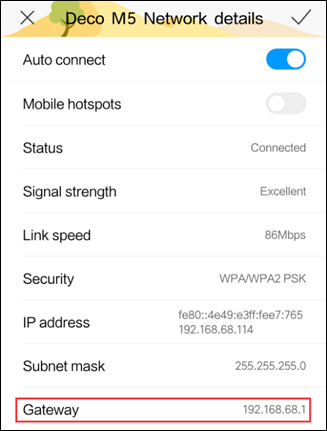
Some phones do not display a gateway in these settings. Ask the operator for the portal address or read the network details on a laptop connected to the same hotspot. Avoid switching DHCP to Static just to reveal extra fields; saving an accidental value can break the connection.
How Do You Find the Router Address on iPhone or iPad?
- Open Settings → Wi-Fi. Confirm that the intended hotspot is connected.
- Tap its information button. Use the button beside that network.
- Read Router under IPv4 Address. Copy that value and return to the browser.
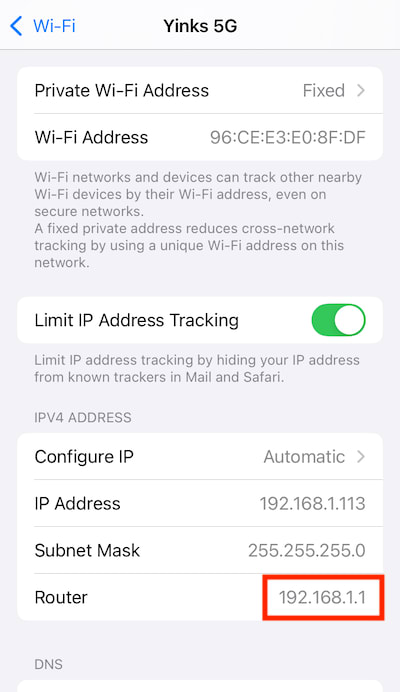
If Router is blank, check whether WiFi has finished connecting. Leave Configure IP unchanged and ask the operator if the value remains unavailable.
How Do You Find the Default Gateway on Windows?
On Windows 11 builds with Hardware and connection properties, use this route:
- Open Settings → Network & internet. Choose Advanced network settings.
- Open Hardware and connection properties. It may appear under More settings.
- Find the active WiFi or Ethernet adapter. Read its IPv4 default gateway, not an address under a disconnected adapter.
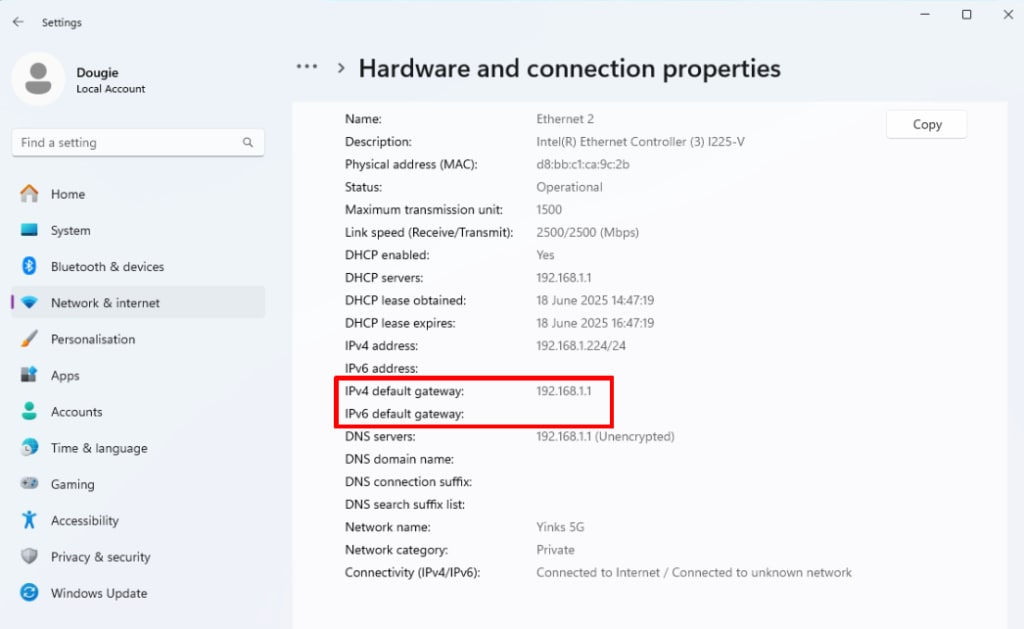
Command Prompt alternative: open Start, find Command Prompt, type ipconfig and press Enter. Read Default Gateway under the active connection. This is also useful when Settings menus differ; no release, renew or reset command is needed.
How Do You Find the Router Address on Mac?
- Open Apple menu → System Settings → Wi-Fi. Find the connected network.
- Open Details. Look for Router; open TCP/IP if necessary.
- Copy the Router value. Close the settings without changing the configuration.
Apple also documents System Settings → Network → selected network service → Details → TCP/IP. Older macOS versions use System Preferences. Follow the matching Network controls for your version.
How Do You Find the Gateway on Linux?
On Linux with iproute2, this command displays IPv4 default routes without changing them:
ip -4 route show defaultFor an example output of default via 10.0.0.1 dev wlan0, the address after via is the gateway and the name after dev identifies the interface. Both values may differ on your device.
Match the interface to the hotspot connection. A VPN or virtual machine can have its own gateway. If no suitable route appears, check the connection before attempting to change the routing table.
Which Number Should You Use?
Suppose the connection displays IP Address: 10.0.0.23 and Router: 10.0.0.1. The first belongs to the device; the second is its gateway. DNS is a separate service and is not the field to copy for this task.
Use the value actually displayed. Do not replace its last number with 1 or change it to 10.0.0.1 to match an example.
What Do You Do With the Address?
Enter the confirmed address in the browser’s address bar. For the local HTTP address 10.0.0.1, type http://10.0.0.1/. Follow a different hostname or HTTPS address when the operator specifies one; do not add /admin or another path by guesswork.
- Rates or session controls appear: this is customer access. Check your existing balance or begin the purchase; Piso WiFi Login explains activation.
- An owner password prompt appears: customers need the operator’s customer address. Authorized owners can use 10.0.0.1 Admin.
- The address times out: confirm WiFi is still connected and ask whether that gateway hosts the portal. The gateway might not host the customer portal.
If the portal opens but browsing fails, the address lookup has done its job. Continue with the session and service checks under 10.0.0.1 Not Working.
FAQs
Is my gateway the same as my public IP?
They usually identify different parts of the connection. A public IP lookup shows the address an outside service sees, which may belong to your internet provider or VPN. Read local network settings for the gateway.
Can this website detect my gateway automatically?
Follow the steps above to read the address on your device. This website does not scan your network or request permission to discover local equipment.
Does finding the address reveal the admin password?
No. The address identifies where to connect. An owner still needs the equipment’s authorized credentials.
Conclusion
A gateway lookup is a small, read-only task: connect to the right network, identify its active connection and copy Router or Default Gateway. Keep that value separate from the device’s own IP address and leave the network configuration unchanged.
Use the result alongside the machine’s customer-portal instructions. If the gateway has no browser interface, confirm where the portal is hosted instead of trying resets or guessed addresses. Once the customer controls load, use the payment or connection checks for any remaining problem; the address lookup is complete.
Sources and documentation
- TP-Link instructions for finding a router LAN IP address
- Google Android Wi-Fi connection settings
- Microsoft ipconfig command reference
- Apple Wi-Fi settings on Mac
- Apple TCP/IP settings on Mac
- RFC 1918 private network addressing
- iproute2 IPv4 option and route display
- iproute2 route command manual
- Huawei Windows network properties instructions