Table of Content
How Do You Open the LPB Customer Portal?
Join the WiFi name printed on the LPB machine, then open the hotspot sign-in notification. If nothing appears, enter the operator’s address in your browser. Use http://10.0.0.1/ when the machine identifies it as the portal. A public search for “LPB login” cannot open your local session while the phone is on mobile data.
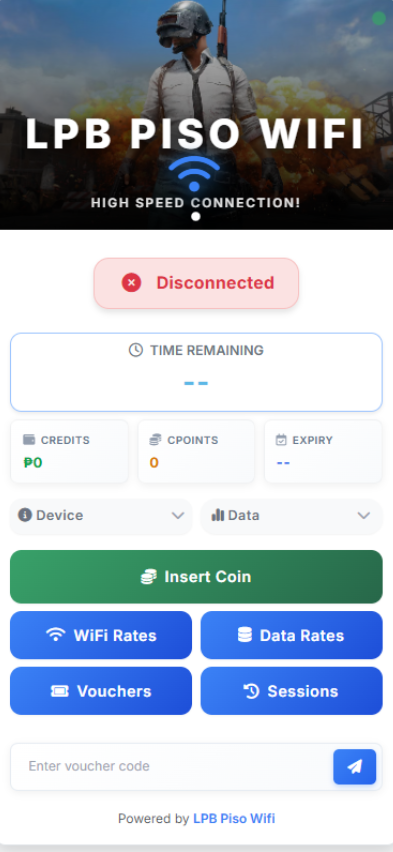
In LPB’s published customer example, WiFi Rates and Data Rates are separate controls, alongside Insert Coin, Vouchers and Sessions. Look at the offer you intend to buy before starting collection. An administrator password prompt means you have reached owner controls; return to the customer address rather than entering a voucher there.
Which LPB Features Apply to Your Machine?
LPB 2.0 advertises time and data purchases, vouchers, GCash and Maya payments, and cloud storage of session time. Your operator chooses which services to offer, so the controls on the connected portal are more useful than a feature list when deciding how to pay.
There is also a specific reason some older LPB voucher sessions lack controls: LPB’s published legacy theme includes a “Pause Disable” variant that disables coin insertion, voucher purchase, pause and conversion for voucher customers. That is a documented legacy configuration, not a rule for every LPB 2.0 installation. Tell the operator whether you entered a voucher or paid through Insert Coin when reporting a missing button.
What Should You Check Before Paying?
Compare the offer shown on the portal with the machine’s price sign. Resolve any difference while you are still beside the coin slot.
- Time or data: read the units. A number of megabytes is a different purchase from a number of minutes.
- Validity: check when the allowance expires and whether your planned return falls within that period.
- Existing session: decide whether you need more credit or simply need to resume what you already bought.
- Correct coin slot: select the intended subvendo if the portal offers several locations.
For coins, use Insert Coin, wait for collection to begin, then watch the recognized amount as you insert accepted denominations. Complete any confirmation shown and check that the purchased minutes or data appear in your session. For a wallet purchase, compare the completed transaction with the credited session; the Piso WiFi payment checks explain how to trace a mismatch.
How Do You Pause and Return to a Session?
Pause through the active session’s own control. Locking the phone or closing the browser does not establish that LPB has stopped charging time.
- Read the remaining time and return deadline. Note both before leaving.
- Select Pause when offered. Wait for the portal to confirm the paused state.
- Reconnect and open the session. Use Resume or Connect if required, then check that browsing works.
If the offer does not state a clear deadline, ask “Until what time can I use these minutes?” Piso WiFi Pause Time explains why an allowance can remain unused but still expire.
Can You Carry Remaining Time to Another Location?
LPB Cloud Session Time is the vendor’s service for keeping remaining time synchronized across LPB machines. Before leaving with unused credit, ask the operator whether your purchase can be continued at the destination you have in mind. A familiar LPB logo does not tell you which software release or session settings that machine uses.
Know how your session will be recognized. Ask: “Can I resume this purchase at that location, and what do I need to use there?” LPB’s public product information describes synchronization but does not identify a universal customer recovery code, account field or manual transfer button. Use the method your operator demonstrates for your purchase; do not create an owner account on LPB’s public website to try to recover customer time.
- Record the session before moving. Open Sessions if it is available. Note the WiFi name, remaining allowance, expiry and any session identifier actually displayed. Keep your payment reference or voucher privately; a screenshot of the timer is useful evidence, but it is not a recovery credential.
- Pause if your purchase permits it. Use the active session’s Pause control and wait for the paused state. If no pause is offered, ask how the timer behaves while travelling before relying on those minutes later.
- Join the confirmed destination. Start with the same phone and browser, open that machine’s customer address, and use the customer identification method the operator supplied if prompted.
- Find the existing allowance before paying. Open Sessions where shown. Compare the type of allowance and expiry with the original purchase. Do not treat a new empty session as proof that the old balance has expired.
- Resume and test access. Use Resume or Connect only if the matched session needs it. Open a website and check the session again. The useful result is your existing purchase becoming usable, not merely seeing the destination’s portal.
If the destination cannot find the balance, stop at that point and contact the operator. Give the original and destination WiFi names, purchase time, last visible allowance and the exact message. Return to the original hotspot if practical while the records are compared. Avoid clearing browser data or changing the phone’s private WiFi address during that investigation.
Machine Transfer is different. LPB uses that name for moving a machine between distributor accounts with email verification. It is not the customer procedure for moving unused internet time.
What Helps When Credit Is Missing?
The timing narrows the investigation:
- Immediately after coins: compare the inserted denominations with the amount recognized on screen.
- After a wallet payment: keep its status and reference so the operator can match the transfer to the sale.
- After moving between machines: identify the two locations and the session that should have followed you.
- After changing phones: return with the original device if available and ask which recovery method the operator supports.
Keep usable voucher and recovery codes private. Leave the existing session intact while it is checked; another purchase does not explain where the first allowance went.
FAQs
Is the LPB website my customer login?
No. LPB’s public website describes the product and provides platform services. Your local machine supplies the customer address and handles the session you purchased.
Does a visible LPB balance guarantee internet access?
No. Check that the session is active and an ordinary website loads. The portal can show a balance while the hotspot’s internet connection has a separate fault.
Conclusion
LPB separates time and data offers and can provide cloud session access, but the connected machine’s controls tell you what is available for your purchase. Read the rate, choose the intended coin slot or payment method, and check the credited result before leaving.
Before a later visit, know the return deadline. Before changing locations, have the operator show how your purchase will be recognized there. If the destination cannot find it, keep the original payment and session details so the operator can trace that balance before you pay again.