Table of Content
How Do You Open 10.0.0.1 Admin?
Connect to your machine’s management network and open its recorded administrator address. AdoPiSoft documents http://10.0.0.1/admin for its standard setup; use the changed address if your installer configured another one. Sign in with your assigned account, then confirm the machine name before editing settings.
Customers buying internet access should use Piso WiFi Login. The owner login controls equipment, rates and customer records; it is not an extra step in buying time.
Owner Login and Account Recovery
Which Account Are You Trying to Open?
Check the account type before trying a different password. The Piso machine, vendor service and upstream router can have separate credentials. For example, an AdoPiSoft Manager account is distinct from the local machine account.
| Account or screen | Purpose | Where to get access |
|---|---|---|
| Customer portal | Payments, customer account and session status | The hotspot’s customer address and operator instructions |
| Local machine administration | Settings and records on a particular machine | The installer handover and that platform’s documentation |
| Vendor management account | Vendor services such as licenses and supported remote management | The vendor’s official account system |
| Upstream router administration | The separate router or internet connection | That router’s owner documentation |
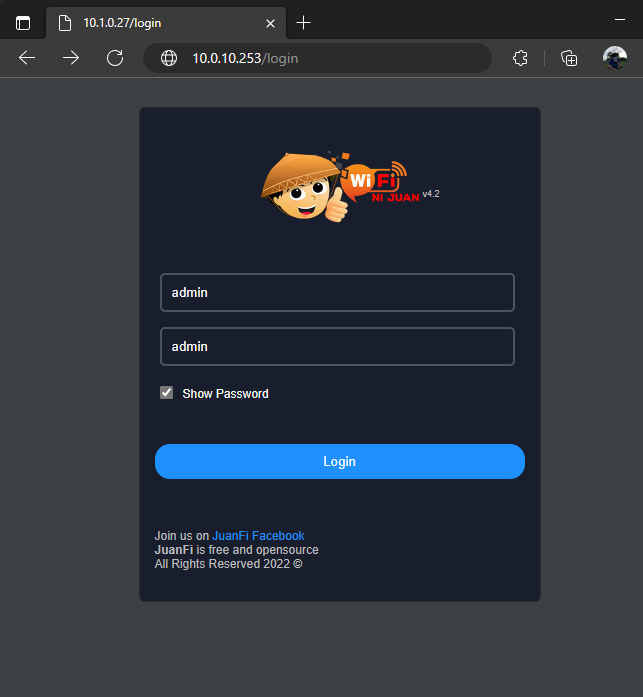
What If Your Machine Uses JuanFi?
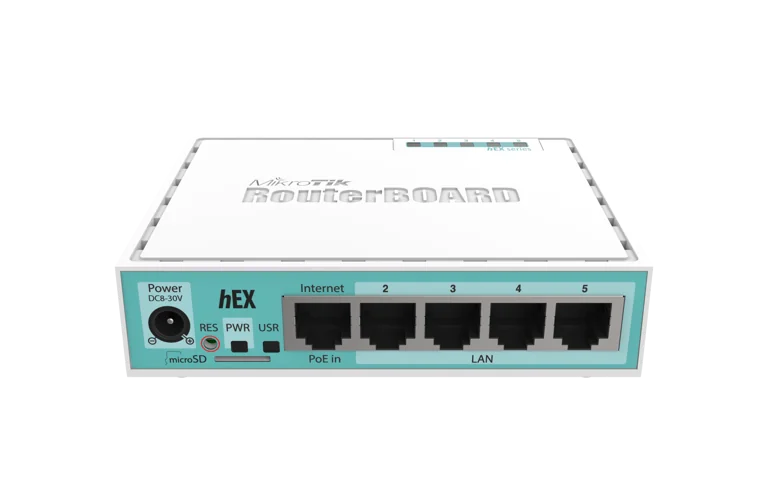
JuanFi separates the coin controller, MikroTik HotSpot router and customer portal. Open the component that matches the job: coin-controller settings for the controller, RouterOS administration for the router, or the customer portal for a paid session.
If customers can open the portal but coins do not produce credit, check whether the controller is reachable and whether the purchase appears in the hotspot records. Keep the controller model, JuanFi release, RouterOS version and management addresses together for the installer. Those details help identify the failing component before you change the whole network.
How Do You Sign In to the Local Admin Panel?
- Identify the equipment. Check the installation record for the Piso controller, access point, upstream router or vendor account you need.
- Use its management connection. Join the designated network or permitted wired connection. Customer WiFi may deliberately block administration.
- Enter the recorded address. Use http://10.0.0.1/admin only for an installation configured for it. Compare the interface branding and machine identity with your records.
- Sign in with your assigned account. Check autofill and capitalization if the password is rejected. Stop retrying if the form reports a lockout.
- Check status before making the change. Confirm that you reached the intended machine. Sign out afterward on a shared device.
Use encrypted administration where the equipment supports it. Keep a local HTTP interface on the trusted management network; use the platform’s supported remote service when you need access from elsewhere.
Where Do You Find the Correct Username and Password?
Use the account created during installation or saved in your password manager. If someone else installed the machine, get a handover covering the local login, vendor account and recovery email. Initial credentials in a manual are not evidence of the password on a machine already in service.
In AdoPiSoft’s documented local interface, Admin > My Profile > Account Details lets a signed-in user change the username and password. Use a unique owner password. For staff, Admin > Accounts > Create Account provides separate accounts; remove permissions they do not need, such as erasing sales records or restoring backups.
How Do You Investigate an Admin Login Failure?
- The address does not respond. Check power, the management connection and the recorded address. Find My Gateway helps inspect network details, but the gateway may be separate from the Piso controller.
- The password is rejected. Confirm the machine and account type, then check autofill and capitalization. Use the matching recovery route below.
- Login works but controls are missing. Check account permissions. A staff account without permission to restore backups or manage users may be working as intended.
- Local access works but remote access fails. Check the vendor service and machine’s internet connection. A remote-service failure does not call for resetting working local equipment.
Keep the exact error and the last action that worked. Those details make a support request more useful than a screenshot of an empty login form.
What If You Have Lost Owner Access?
Start with the login that is failing. A local machine account, a vendor account and a license transfer need different actions. The following routes are documented for AdoPiSoft; use your own platform’s support process for other software.
Forgot Your AdoPiSoft Manager Password?
Open AdoPiSoft Manager and choose Reset password beneath the login form. Use the email associated with your Manager account and follow its recovery prompts. This recovers the vendor account, not the local username and password at 10.0.0.1/admin.
Can Anyone Still Sign In Locally?
If you still have an authorized signed-in session, use Admin > My Profile > Account Details to change that account’s credentials. A second administrator with account-management permission can also inspect the accounts available under Admin > Accounts.
If nobody can sign in, contact the installer or AdoPiSoft technical support. Have the board model, software version, Device ID if available, purchase record and backup details ready. Explain whether customers can still connect. The published profile controls require an existing login; they cannot recover a forgotten password when nobody can sign in. Ask support which recovery method applies to your build and what it preserves before resetting or reflashing storage.
Did You Buy a Second-Hand Machine?
- Create or use your own Manager account. Give the seller the email for that account, not your password.
- Ask the seller to transfer the license. AdoPiSoft’s documented Manager workflow provides Transfer License for the existing license owner.
- Accept the offer. Open Accept License Offers in your account and accept the seller’s transfer. Check that the license appears in License Keys.
- Complete the machine handover. Check the Machines list and obtain the local administrator login, management address and backups. If the machine is missing, resolve its registration with the seller or vendor using the Device ID.
License ownership does not itself replace a local password. Once both forms of access are working, update recovery details and remove access that the former owner no longer needs. Keep passwords, license keys and complete backups out of public support posts.
Should You Reboot, Restore, or Factory Reset?
A reboot restarts equipment. A restore replaces settings or records with a backup. A factory reset removes custom configuration. Choose according to the fault, and save useful logs first; JuanFi’s v3.2 notes say a NodeMCU restart clears its system logs.
| Action | What to check first |
|---|---|
| Reboot or restart | Identify the component, save relevant evidence, and plan for interrupted connections. Use its supported restart control. |
| Restore a backup | Confirm the device and software compatibility, backup contents, and which current records or settings will be replaced. |
| Factory reset | Have a recovery or handover plan and the information needed to configure the equipment again. Follow the exact model instructions. |
Check backup compatibility. MikroTik recommends restoring a binary backup to the same device on the same RouterOS version; User Manager and The Dude need separate database backups. Label files with the device, date and version, and keep an encrypted copy off the router.
For second-hand equipment, a physical reset may leave the device registered to its previous owner’s vendor account. Ubiquiti, for example, documents that resetting a device does not remove it from the application that managed it. Complete the appropriate account handover as well.
Rates, Passwords and Wireless Settings
What Should You Check Before Changing Settings?
Write down the fault first. “A customer cannot pause after the third use” calls for checking that session and its pause rules, not changing the gateway.
- Record the current setting. Note what you plan to change and how to undo it.
- Export the relevant backup. AdoPiSoft separates database, portal and system-settings backups; select what the change affects.
- Choose a maintenance time. Tell customers about an expected interruption and use your own test session.
- Decide how to check the result. For a rate change, compare the purchase price with the allowance actually credited.
Which Settings Need the Most Care?
Check the selected machine, subvendo or customer before saving. These changes can affect customer access and stored records:
| Area | Check before saving |
|---|---|
| Rates and payment options | The price and allowance customers actually see, including the correct machine or subvendo. |
| Session rules | Pause permission, validity, data limits and the effect on existing purchases. |
| User and session records | That you have selected the intended customer before changing credit or access. |
| Network configuration | The current management route and a recovery plan if access is lost. |
| Staff accounts | The minimum permissions needed; avoid unnecessary ability to erase records or change accounts. |
| Software updates | The installed version, applicable release notes, backup and expected interruption. |
How Do You Check a New Rate or Voucher Before Offering It?
Write down the offer first: price, minutes or data, when expiry begins, the number of permitted devices and the pause rules. Check whether a change affects existing purchases as well as new ones.
- Save the old offer. Record its values and keep the relevant backup.
- Configure the new package. Make the portal wording and printed price sign agree.
- Make a test purchase. Test the coin, voucher or digital-payment method you will sell. Compare the accepted amount, credited allowance and expiry with the offer.
- Try the enabled session controls. Check pause, resume and top-up behavior on that test session.
- Resolve mismatches before selling. Correct the configuration or restore the previous offer, then repeat the affected check.
Keep the test result with the change record. It gives you something concrete to compare when a customer reports an unexpected allowance.
Are You Changing the WiFi Password or the Admin Password?
The WiFi password joins a protected wireless network. The admin password permits management changes. A voucher or customer-session passcode is separate again; changing one does not automatically change the others.
The SSID is the WiFi name shown on customers’ phones. To change it, identify the router or access point broadcasting that name. It may be separate from the Piso controller. For a missing customer balance, check the payment and session records instead of changing either password.

What Should You Prepare Before Changing Wireless Settings?
Saving a new wireless name or password can disconnect the device you are using. Make sure you can reconnect before saving:
- Record the SSID, security mode and bands. Export the configuration where supported.
- Keep a management connection. Prefer an authorized wired connection, or have the new wireless credentials ready.
- Check dependent equipment. Repeaters, mesh links and wireless bridges may also need updated details.
- Prepare the customer instructions. Update the machine’s label after the new connection works.
Leave gateway, DHCP, VLAN and payment settings alone for a simple name change. Adding a password to an open hotspot is a separate change to how every customer joins.
How Do You Change the WiFi Name and Password?
- Open the wireless settings for the right device. Sign in to the router, access point or controller that broadcasts the intended SSID.
- Select the network and band. Check whether the change affects one radio or multiple bands.
- Edit the name and joining password. Use SSID or Network Name for the name. On a protected network, use a strong wireless password different from the administrator password.
- Save and reconnect. Wait for the change to apply, then join with the new details if your device disconnects.
- Check customer access. On your test device, open the portal and check that the portal opens and the test session works. Update dependent equipment and printed instructions.
Match the model, hardware revision and firmware to the menu examples below. A controller-managed access point may require the change in its controller.
Where Are These Settings on D-Link, NETGEAR, and TP-Link Routers?
These paths apply to the documented models and software. Match your equipment before following them. The older D-Link and NETGEAR references identify menus, not current security-support status.
| Documented model and reference | WiFi name and password | Device access control |
|---|---|---|
| D-Link DIR-822 Rev C. Manual v3.01: wireless and connected-client controls. | Settings > Wireless; edit Wi-Fi Name (SSID) and Password for the intended band. | Home > Connected Clients > client pencil icon > Access; choose the appropriate allow/block state and save. |
| NETGEAR R7000. R7000 manual, January 2019; support articles 23439 and 23289. | BASIC home > Wireless; edit Name (SSID) and Password (Network Key), then Apply. | ADVANCED > Security > Access Control; enable the feature, select the intended device rule, then Apply. |
| TP-Link Archer AXE75. TP-Link FAQs 3085 and 1535 list AXE75 applicability; menus depend on firmware. | On the supported web interface: Advanced > Wireless > Wireless Settings, then Save. | Advanced > Security > Access Control; enable it and add the intended device to the Deny List. |
Coverage and Device Access
How Do You Extend Coverage Without Disrupting the Portal?
Compare the same test device near the access point and at the weak spot. Try both the portal and an ordinary website. This helps distinguish weak radio coverage from a login or internet-service fault.
Choose placement using the access point’s antenna pattern and test where customers sit or stand. Walls and interference affect the result. For an added access point, trace its customer connection to the intended hotspot gateway and confirm address assignment on the correct network or VLAN.
- Before payment: check that the device receives network settings and reaches the intended portal.
- After payment: check an authorized session and ordinary browsing.
- Between customers: verify isolation on the same access point and across the extension.
- When moving: test any promised ability to keep a session between coverage areas.
How Do You Block an Unwanted WiFi Device?
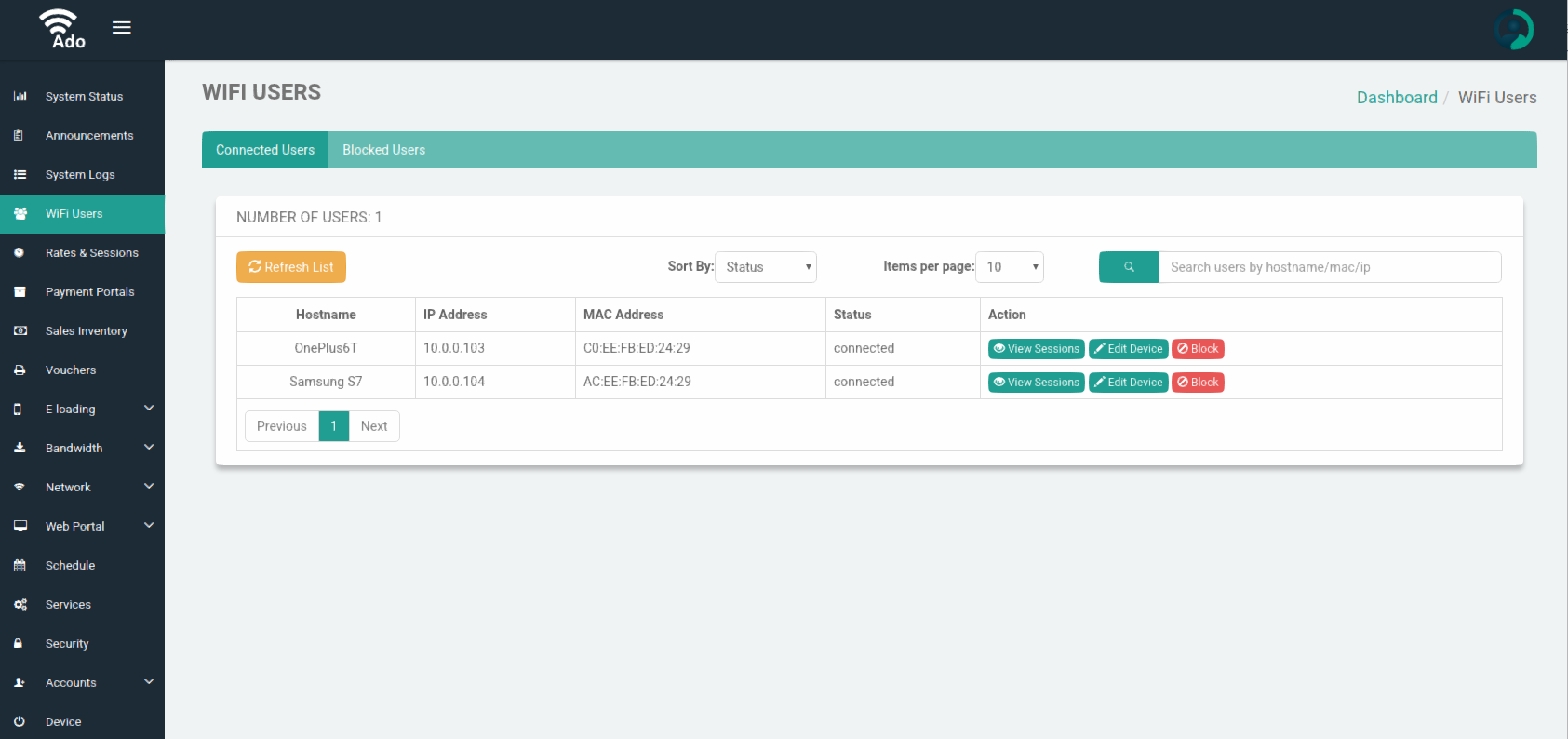
Identify the device first. An unfamiliar hostname is not proof of unauthorized use. Compare the client details with your equipment list or the WiFi address displayed on the customer’s device; private addresses can change how a familiar phone appears.
- Find the intended client. Open the connected-device or access-control list. Exclude your management computer, access points and other service equipment.
- Apply an individual rule. Use Block or Deny for that client. Avoid switching the whole network to an allow-only list unless every permitted device is prepared.
- Check the effect. Confirm the intended restriction while a permitted customer and your administrator connection still work.
- Record the change. Keep the device details and reason. If you selected the wrong entry, remove the rule or restore its allowed state.
Blocking a device is different from pausing its paid session. In AdoPiSoft’s documented Wifi Devices controls, Blocked Devices > Unblock reverses a device block. Check why the device was blocked before allowing it again.
Does Blocking a MAC Address Fully Secure the Network?
No. Device addresses can change or be copied, and Apple advises against relying on MAC filtering to prevent unauthorized access. A block also cannot repair a disclosed owner password or replace wireless encryption.
Use a secure wireless mode and strong password for protected staff networks. For customer access, check isolation and payment enforcement separately: what can a customer reach before payment, during a session and after the allowance ends?
How Do You Separate Customers and Keep Payment Controls Working?
Payment enforcement limits internet access according to the purchase. Customer isolation limits access to other devices. A successful purchase does not prove that both controls work.
On UniFi, Client Device Isolation addresses clients on the same access point; Network Isolation separates networks or VLANs. A larger installation may also need supported switch access-control lists. Check the actual traffic path instead of relying on one access-point setting.
On MikroTik HotSpot, review walled garden entries and bypassed IP bindings: these allow selected resources or clients around ordinary authentication. Keep required payment services reachable while reviewing unnecessary exceptions. HotSpot is documented for IPv4, so check how your installation handles IPv6.
- Test before payment. Confirm that the portal and required payment resources work while other browsing follows the unpaid policy.
- Test a paid session. Check browsing during the allowance and the configured result when it ends.
- Test separation. Use your own clients on the same and different access points. Check that customer WiFi cannot open private management services.
Repeat the affected checks after adding a switch or access point, or changing network rules.
FAQs
Does every Piso WiFi machine use 10.0.0.1/admin?
No. Use the address configured for your machine. AdoPiSoft documents this address for its standard setup, but other platforms and customized networks differ.
Can I use 10.0.0.0.1/admin?
No. The five-part address is invalid. If your machine uses 10.0.0.1, remove the extra zero group and use /admin only when that is its configured management path.
Is the WiFi password also the admin password?
They serve different purposes: joining a protected network and changing its settings. Use separate passwords.
Can I change a customer’s pause setting?
If your software and permissions allow it, inspect the selected session and purchased offer first. Pause permission is separate from expiry. Piso WiFi Pause Time explains the customer controls.
Should I reboot when a customer payment is missing?
First match the transaction to the customer and machine. A reboot will not tell you whether the payment was credited. Compare the details in Piso WiFi Payments.
Can I administer the machine from another location?
Use its supported, authorized remote-management service. A private address such as 10.0.0.1 is not a public remote-login address.
Conclusion
A useful configuration change ends with the intended result on a customer device. Keep the original setting and test record together, whether you changed a rate, wireless name or access rule. That small record makes later faults easier to trace.
For lost access, identify the account before choosing recovery. A Manager password reset, local administrator change and second-hand license handover are different jobs. Complete the relevant process, then check that the machine still provides the service customers paid for.
Sources and documentation
- AdoPiSoft Manager login and password recovery
- AdoPiSoft technical support
- AdoPiSoft device, session and unblock controls
- AdoPiSoft machine activation and local administration example
- AdoPiSoft Manager account and license ownership
- AdoPiSoft local account profile
- AdoPiSoft administrator permissions
- AdoPiSoft backup and restore categories
- AdoPiSoft software update workflow
- RFC 1918 private network addressing
- D-Link DIR-822 Rev C manual v3.01: wireless and client controls
- NETGEAR changing the WiFi password or network name article 23439
- NETGEAR access control article 23289
- NETGEAR R7000 user manual January 2019
- TP-Link changing wireless settings FAQ 3085
- TP-Link blocking or allowing devices FAQ 1535
- Apple recommended settings for WiFi routers and access points
- JuanFi official repository and architecture
- Ubiquiti network and client isolation
- Ubiquiti public guest WiFi practices
- MikroTik HotSpot captive portal documentation
- TP-Link explanation of reboot and factory reset
- JuanFi v3.2 release notes
- MikroTik binary configuration backup
- Ubiquiti factory reset and management removal
- Ubiquiti access-point antenna patterns
- TP-Link EAP client address-assignment troubleshooting