Table of Content
Start With the Screen You Can See
Start in WiFi settings: confirm that the phone or computer is connected to the intended hotspot. If the machine uses 10.0.0.1, enter http://10.0.0.1/ directly in the browser’s address bar. Then follow the symptom you can see.
| What you see | Check first | Next step |
|---|---|---|
| The hotspot name is missing | Exact network name and whether it is available here | Confirm with the operator before choosing a similar-looking network |
| WiFi rejects the network password | The WiFi password | Ask the operator for the current WiFi password; an admin password or voucher is different |
| Obtaining IP address does not finish | Address assignment on this connection | Tell the operator the status and follow the DHCP check below |
| Search results instead of the portal | The address was searched instead of opened | Enter the complete local URL in the address bar |
| Portal unavailable or connection timed out | Hotspot name and actual gateway | Follow the network and address checks below |
| A prompt asking for an administrator password | Whether you opened the owner dashboard | Return to the customer portal |
| Portal opens but other sites do not | Session status, credit and the hotspot’s internet connection | Check the connected-without-internet section |
| Your paid time is missing | Original hotspot, device and session | Keep the evidence and contact the operator |
| Active access is slow or keeps stalling | Which task fails and where it happens | Use the slow-connection checks below before buying more time |
If you already paid, keep the existing browser tab and purchase details while checking the fault.
Are You Connected to the Right Hotspot?
Match the connected network name with the machine’s label. A device can reconnect to a saved home network or a nearby hotspot with a similar name.
- Wrong network: join the intended hotspot and retry its address.
- Signal drops: move closer to the access point while staying on the same network.
- The phone switches to mobile data: briefly turn mobile data off to reach the local portal, then restore it.
- Obtaining IP address never finishes: report that exact status to the operator. The device needs a working network configuration before it can reach the portal.
On Windows, an address beginning 169.254 is a clue that the computer did not receive an address from the router. Ask the operator to check DHCP rather than enter a guessed static address. Avoid forgetting the network or resetting its settings as the first response when paid credit is attached to the device.
Is the Address Correct?
10.0.0.1 has four number groups. 10.0.0.0.1 has five and is not a valid standard IPv4 address. Use dots, then enter the complete local URL in the address bar. If search results appear, replace the search with http://10.0.0.1/.
Use the address printed on the machine when it differs. Adding /admin can open owner controls; /login and /status are not universal customer paths. You can also Find My Gateway through device settings, but confirm whether that gateway hosts the customer portal before assuming the two addresses are identical.
What If the Login Window Does Not Appear?
- Check that WiFi is still connected. Dismissing a captive sign-in prompt can leave the device disconnected.
- Open your usual browser. Enter the operator’s portal address manually; you do not need to wait for the small sign-in window.
- On iPhone or iPad, open the network information. Apple documents a Join Network control for captive WiFi access.
Use the browser holding an existing paid session where possible. If a warning replaces the expected portal, read its exact wording before changing security settings.
What Do Security Warnings and Local Network Requests Mean?
Not secure on HTTP means the connection is not encrypted. A certificate error on HTTPS means the browser could not establish the expected secure connection. Neither message indicates that your paid time has expired.
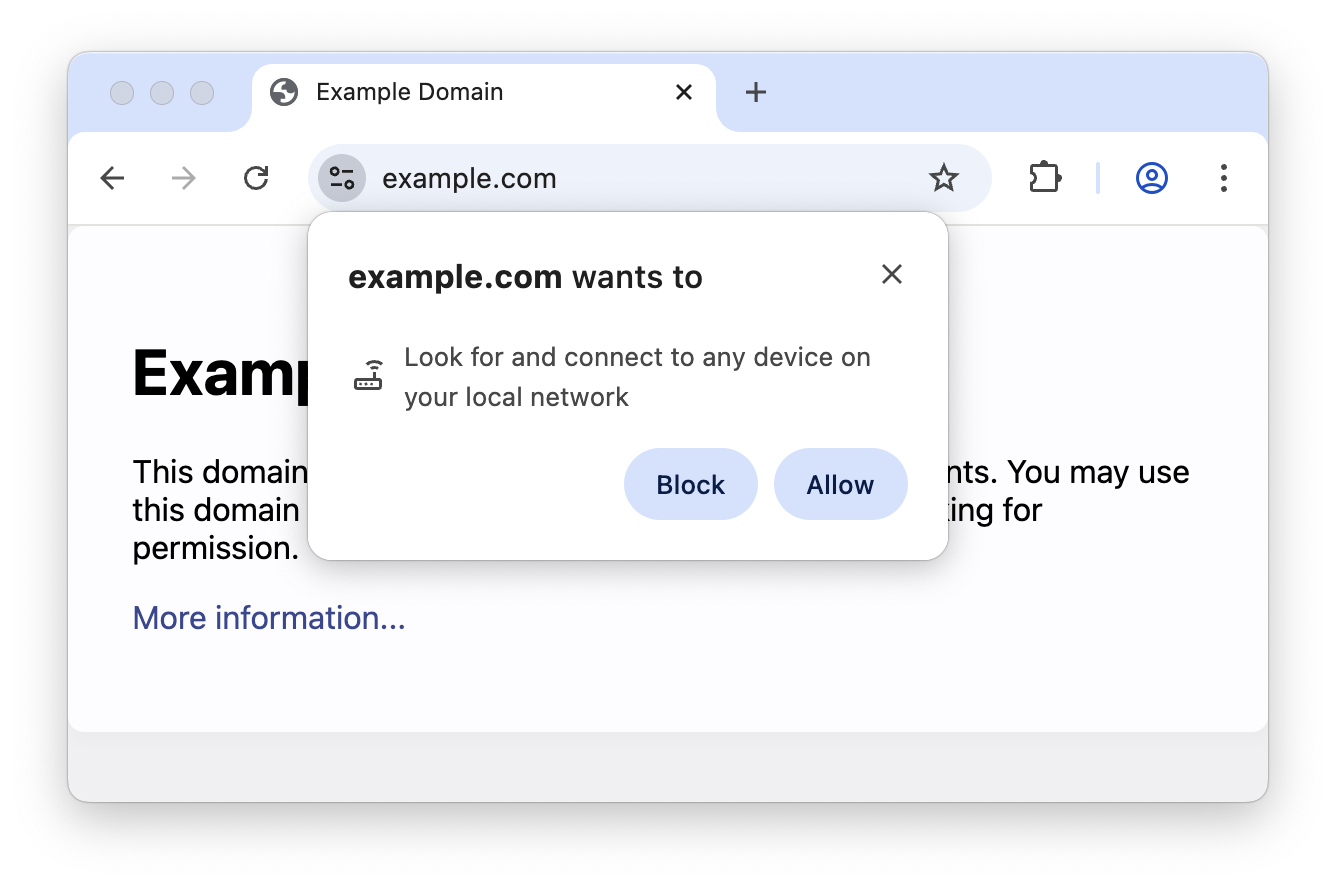
A Local network access request is different again: it asks whether a website may contact local devices or services. Check which site is requesting access and whether you initiated an operator-documented action. Chrome on a computer provides individual permissions through Site settings beside the address.
- To open the portal: type the address confirmed at the machine directly.
- For an unfamiliar permission request: leave it blocked until its purpose is clear.
- For a certificate error: give the operator the warning and address. Do not change a banking or wallet address to HTTP to bypass it.
This website does not need permission to discover local devices for you to read these instructions.
Could a VPN or Custom Network Setting Be Involved?
A VPN or filtering app can affect access to local equipment. If you are permitted to change it, briefly pause the VPN, retry the confirmed portal and restore it after the comparison. On a managed device, ask the administrator instead of removing a profile.
Change one setting at a time and note its original value. Random DNS changes are not a useful first fix for a numeric address such as 10.0.0.1. If a hostname-based sign-in fails and you deliberately configured a custom Private DNS provider, you can compare the phone’s Automatic setting, then restore your preference. Google recommends keeping Private DNS enabled where supported.
Why Does the Portal Open but the Internet Still Fail?
A working portal shows that you can reach the hotspot’s local service. To browse other websites, you also need an active session and a working internet connection at the hotspot.
- Paused: use the offered Resume or Connect control.
- No usable allowance: check time, data and expiry together.
- Active credit but websites fail: try two websites and tell the operator which failed, along with your remaining time and status.
- Only one app fails: try that service’s website before treating it as a hotspot-wide outage.
Loading a website is enough for a first connection check. A large speed test can consume a limited data allowance without explaining why the session failed.
What If the Connection Works but Feels Too Slow?
Identify what is slow—a video, a message or every website. Move nearer the access point, pause any large download or upload you started, then retry the same task. On Windows, Task Manager can help identify heavy network use; leave unfamiliar system processes and security software alone.
| What you observe | Useful next check |
|---|---|
| One app struggles; ordinary websites open | Check that app’s status or try its website. A problem with one app does not by itself show that the hotspot is faulty. |
| Performance improves nearer the access point | Tell the operator where it improves. Distance and obstacles are useful clues. |
| Several services remain slow after downloads stop | Ask the operator to check the connection and any speed limit attached to your package. |
Tell the operator which task was slow, where you were sitting and whether moving nearer helped. That comparison is more useful than a signal-bar count alone.
On a data-limited Windows connection, the metered setting can reduce some background syncing and downloads. It does not stop every app or preserve paid minutes. Arrange necessary updates when suitable access is available.
Why Did Your Time Disappear After Reconnecting?
Return to the original hotspot with the original device and browser. Look for Paused, an expiry message or a recovery prompt. A blank balance can mean a different machine, expired access or a session the portal no longer recognizes.
Tell the operator if the change followed a new phone, another access point, cleared browser information or a private-address setting change. Device recognition depends on the platform, so repeated privacy-setting changes are a poor recovery method.
- After pausing: check the return deadline and the session’s resume control. Piso WiFi Pause Time explains the expiry distinction.
- After paying: compare the confirmation with the credited amount. Piso WiFi payments and remaining time covers missing-credit evidence.
- After moving or changing devices: ask for the operator’s supported transfer or recovery method.
What Should You Send the Operator?
Describe the last step that worked. “The portal shows 25 minutes remaining, but two websites fail” is more useful than “WiFi is broken.” Include:
- Connection: hotspot name, device type and whether the portal opens.
- Session: status, remaining time or data and exact error or expiry notice.
- Purchase: approximate time, amount and payment method; share transaction references privately.
- Recent change: a move, a different phone or a changed network setting.
Crop screenshots and hide usable vouchers and payment verification codes. Owners should match the report to the session and upstream connection before changing network-wide settings. 10.0.0.1 Admin explains authorized owner access, backups and network controls.
FAQs
Why does 10.0.0.1 open my home router?
Your current network uses that address for its router. Separate networks can reuse the same private address. Join the intended Piso hotspot to reach its equipment.
Can this website check whether my machine is offline?
No. Its private address is reachable only through the appropriate local network or an authorized management connection. The operator can inspect the machine; your connection observations help narrow the fault.
Should I pay again if the portal is stuck?
Have the first payment checked before repeating it. Another charge does not fix a connection fault or explain what happened to the original credit.
Conclusion
Find where the connection fails: joining WiFi, opening the portal or using an active session. Each points to a different check. A local address problem needs the correct network and portal destination; if you have usable credit but websites will not open, the operator needs to check the session and internet service.
Keep changes small enough to undo and restore any setting altered for a comparison. If the fault remains, report the exact message and the last successful step with the purchase details. That gives the operator a useful starting point while preserving the session you already paid for.
Sources and documentation
- IANA private-use IP addresses
- RFC 3986 section 3.2.2 IPv4 address syntax
- Apple captive Wi-Fi networks
- Apple VPN and security software connectivity checks
- Google advanced Android network settings
- Apple private Wi-Fi addresses
- Fix Wi-Fi connection issues in Windows
- Metered connections in Windows
- Check if a site’s connection is secure
- New permission prompt for Local Network Access
- Change site settings permissions