Table of Content
Open Your Piso WiFi Portal
Join the WiFi name printed on the machine, then open http://10.0.0.1 if that is its listed address. The customer portal should show rates, payment options or your existing session. Use a different address when the operator provides one.
Open 10.0.0.1 Login · Find My Gateway · 10.0.0.1 Not Working?
The local link works through your connection to the hotspot. Your purchase and remaining balance are handled by that hotspot, not by this website.
What Do You Need Before You Connect?
Check these details at the machine before starting:
- Match the WiFi name exactly. A nearby hotspot with a similar name may belong to another operator.
- Stay within range. If WiFi keeps disconnecting, move closer before making a purchase.
- Read the offer. Check the price, included minutes or data, accepted payment method and expiry.
- Look for an existing balance. If you have used this hotspot before, open the portal on the same device first.
A WiFi password joins a protected wireless network. A voucher, customer account or payment activates the operator’s internet service. Neither requires the owner’s administrator password.
How Do You Log In to Piso WiFi?
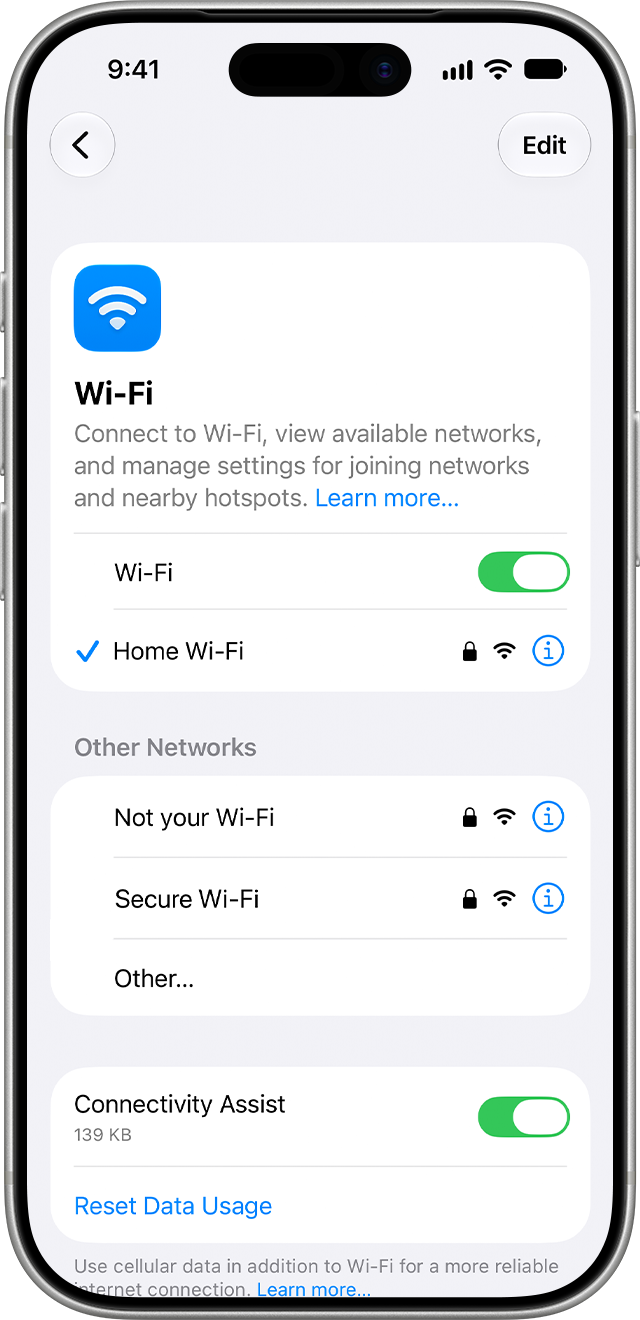
- Join the advertised hotspot. Open WiFi settings, select the name on the machine and enter its wireless password if required. An iPhone’s blue checkmark confirms the WiFi connection, not a paid internet session.
- Open the network sign-in prompt. Tap the welcome screen or sign-in notification. On an iPhone, Apple also describes tapping the information button beside the network and selecting Join Network.
- Enter the address if no prompt appears. Type the operator’s address directly into the browser’s address bar. Use http://10.0.0.1 when listed; 10.0.0.0.1 has an extra number group and is invalid.
- Check the machine and offer. Look for its name, rates or contact details. If you see a router configuration form asking for administrator credentials, check the customer address with the operator.
- Complete one payment or login method. Use Insert Coin, a voucher, your customer account or the offered digital payment. Follow the prompts and wait for the result before submitting again.
- Confirm that access works. Check that the purchased time or data appears, select Start or Connect if required, then open a website you normally visit. This checks both the credited purchase and the internet connection.
Keep the portal tab available for your timer and session controls. For an unconfirmed purchase, save the payment time and receipt so the operator can check it.
Which Login Option Should You Use?
You only need the method offered for your purchase. A voucher field and Insert Coin are alternatives, not a checklist to complete.
| What appears on the portal | What to do |
|---|---|
| Insert Coin | Start the payment window shown by the portal, use the indicated coin slot, and check the credit before leaving the machine. |
| Voucher or access code | Enter the code supplied for that hotspot. Check similar characters and accidental spaces before submitting. |
| Customer account | Use your own customer account or follow the operator’s registration instructions. Do not enter an administrator password. |
| Digital payment | Read the amount, recipient and confirmation instructions. Use only the payment flow offered by that machine. |
| An existing balance | Check its status and expiry before buying again. If paused, follow the portal’s resume action. |
If payment was sent but credit is missing, compare the amount and transaction time with the receipt and ask the operator to check the record. Piso WiFi Payments and Remaining Time explains missing coin credit, vouchers and top-ups.
Why Does the Phone Say Connected Without Internet?
This means the phone has joined WiFi but has not confirmed internet access. Before customer sign-in or payment, that can be expected. Open the portal and check whether the session is waiting for activation.
If the portal shows an active session with credit, try two websites. When both fail, ask whether other customers have the same problem. Tell the operator, “My timer is running, but neither website opens.” The fault may be in your session or the hotspot’s internet connection; another top-up will not tell you which.
What If the Login Screen Does Not Appear?
Reopen WiFi settings first. A phone can leave a weak hotspot and reconnect to a saved network while you are using the browser. Confirm the intended WiFi name, then type the complete address from the machine.
- No address is printed. Ask the operator or look for Router or Gateway in the connected network’s details. Find My Gateway shows the device-specific steps. Some installations use a separate portal address.
- The small sign-in window stalls. Open the operator’s address in your normal browser while staying on the same WiFi.
- A VPN or automatic mobile-data switch interferes. Temporarily change that setting to check local access, then restore it. Change one thing at a time so you can tell what helped.
- The address still does not respond. Check whether WiFi remains connected and whether another customer can open the portal. Give those results and the exact browser error to the operator.
For a timeout, refused connection or other specific error, use the checks in 10.0.0.1 Not Working?.
How Do You Connect a Chromebook to Piso WiFi?
Select the time, open Settings > Network > Wi-Fi, and join the advertised hotspot. Open its sign-in prompt or enter the operator’s portal address in Chrome. Opening an ordinary http:// website can also trigger the network sign-in prompt.
If ChromeOS requires network activation before you can sign in to the Chromebook, Google describes choosing Browse as Guest from the sign-in screen and completing the network prompts. A school or work device may have guest access disabled; ask its administrator for help. Check that websites open in the permitted session before switching browser accounts.
Why Are You Seeing an Admin Login?
A customer portal offers rates, payments or session status. An administrator interface manages equipment and business records. If you added /admin yourself, remove it and use the customer address printed on the machine. If the same form returns, ask the operator for the right address.
Owners should connect to their management network and use the address and account from the installation handover. For the documented AdoPiSoft setup, that address is http://10.0.0.1/admin. 10.0.0.1 Admin explains the account distinction, wireless changes and recovery options.
Do You Need to Download a Piso WiFi App?
Start with the browser address supplied by the operator. An app beside a search result is not automatically required for that hotspot, and an owner’s management app serves a different purpose from customer login.
If the operator requires a customer app, get its official listing and confirm that your existing purchase works with it. Avoid unrelated APK downloads advertised as a way to recover time or unlock Pause. Google warns that apps from unknown sources can put your device and personal information at risk.
Can a TV, Streaming Device or Games Console Use the Portal?
Check the exact model before buying access for a TV, streaming device or console. It must support the hotspot’s sign-in method, not merely detect the WiFi name.
Google says Chromecast and Google TV Streamer devices do not support networks requiring a captive portal. Roku offers Hotel & Dorm Connect, which uses a phone or computer to complete authentication. Follow the manufacturer’s method for your model and check that the operator supports it.
Paying on your phone does not automatically authorize another device. Casting also needs local communication between the phone and receiver, which customer isolation may prevent. Ask the operator for a supported connection before purchasing a package for that setup.
How Do You Return to a Paid Session?
Join the same hotspot and open its portal. If the previous session is paused, use Resume or Continue, wait for the status to show Active and try a website. Check expiry if unused minutes remain but access will not start; Piso WiFi Pause Time explains that distinction.
If you appear as a new customer, give the operator your earlier payment details and mention any change of phone, browser or WiFi privacy settings. That change may help explain why the original session is not being recognized.
FAQs
Is 10.0.0.0.1 the correct Piso WiFi login address?
No. It has five number groups; standard IPv4 addresses have four. Use 10.0.0.1 only if your hotspot lists it.
Do I need an admin password to buy Piso WiFi time?
No. Use the customer payment or login controls. A wireless password may be required to join WiFi, but it is separate from the owner’s login.
Can I open the local portal using mobile data?
Mobile data alone does not connect you to the hotspot’s local network. Join the intended WiFi before opening its local address.
Will this website show my remaining minutes?
No. Your hotspot holds the balance. Read it in the portal used for your purchase.
Should I buy again if login fails after payment?
First check whether the original payment was credited. Keep its receipt and exact error so the operator can investigate without a second purchase.
Why Does My Portal Look Different From the Instructions?
Operators choose different software, versions and designs. Use the labels on your screen; ask the operator about an absent control.
Conclusion
You have completed the login when the hotspot recognizes your purchase and ordinary browsing works. Keep its portal within reach so checking your balance or returning to session controls takes only a moment.
If something fails, identify the stage: joining WiFi, opening the portal, crediting payment or starting internet access. Tell the operator which step failed and copy the message on your screen. That gives them a clear starting point instead of only “the WiFi is broken.”
Sources and documentation
- RFC 1918 private network addressing
- RFC 3986 section 3.2.2 IPv4 address syntax
- Apple captive WiFi network guidance
- AdoPiSoft WiFi rates and payment-window settings
- AdoPiSoft customer accounts
- Google Chromebook WiFi connection settings
- Google Chromebook captive portal troubleshooting
- Google Chromebook network activation before sign-in
- AdoPiSoft official website: Manager App and Remote Management links
- Download apps to your Android device
- Can’t establish a Wi-Fi connection to Chromecast or Google TV Streamer
- How do I use Hotel & Dorm Connect to connect to the internet?