Clear instructions, practical checks and screenshots that show exactly where to click.
Table of Content⌄
Using SnapTik on a computer is straightforward because the TikTok post, downloader and saved file can all be handled through a desktop browser.
You do not need an Android emulator or mobile application.
Download TikTok on Windows
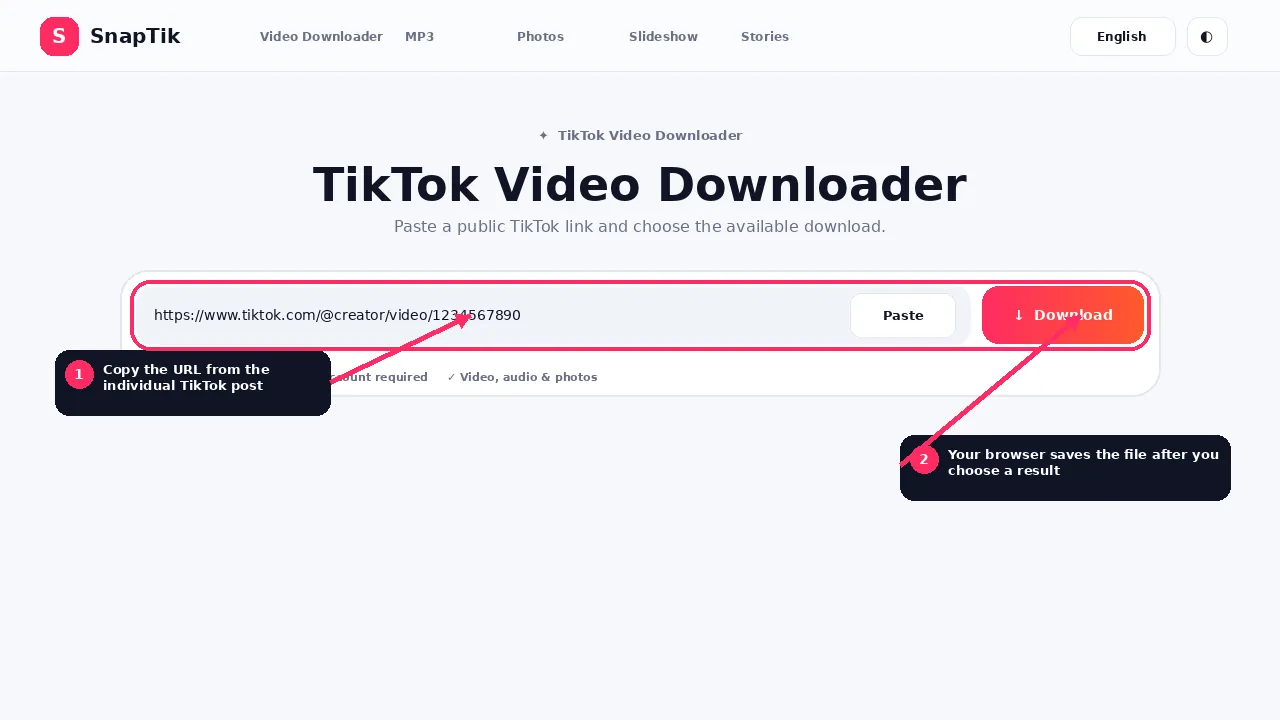
On desktop, copy the individual post URL, paste it and choose a result.
Open the individual TikTok post in your browser, copy its URL, paste it into SnapTik and choose the available result.
Unless you changed the browser setting, the file normally goes to Downloads.
Download TikTok on macOS
On desktop, copy the individual post URL, paste it and choose a result.
Use Safari, Chrome, Firefox or another current browser.
Paste the public post URL and choose the available result.
Safari normally shows active and recent downloads through its download control. The file location can depend on your Safari settings.
Chrome, Edge, Firefox and Safari
SnapTik uses standard web requests and downloads rather than a browser specific plugin.
The major difference between browsers is the user interface around clipboard access, download prompts, save location, popup controls and download history.
If one browser behaves unexpectedly, trying a second browser can help determine whether the issue is local to that browser.
Where Windows Saves the File
For default browser setups, the common location is Downloads.
You can also open the browser download history.
Many Chromium based browsers use Ctrl + J for download history.
If you set the browser to ask where to save each file, the file will be wherever you chose at download time.
Where macOS Saves the File
The common default is the Downloads folder.
Safari and other browsers also have their own download history interfaces.
If you changed the browser download location, use that configured folder.
Download TikTok MP3 on Desktop
Desktop is convenient for audio conversion because you can save and organize the files directly in your preferred folder.
A browser can occasionally decide to display a media file inline.
SnapTik sends download related headers, but final behavior can still depend on the browser.
Use the browser save controls if the media opens in a tab.
Download Starts but Stops Halfway
Possible causes include network interruption, remote media server failure, laptop sleep, expired remote source, browser cancellation or storage problems.
SnapTik supports HTTP range handling for local streamed files, but the remote source still has to remain accessible.
If the download fails completely, process the post again.
Can I Download Many Videos at Once?
The current SnapTik workflow focuses on individual public post URLs.
It is not a bulk profile scraper.
Handling one post at a time reduces accidental mass downloading and server abuse.
Do I Need yt-dlp on My Own Computer?
No.
The local yt-dlp resolver, when used, runs on the SnapTik web server.
Visitors do not need to install command line software on their own devices.
Do I Need FFmpeg on My Own Computer?
No for the web MP3 conversion.
When MP3 conversion is available, FFmpeg runs on the SnapTik server.
Your computer receives the completed audio file.
Desktop Download Management
Desktop browsers make it easier to choose a custom folder, rename files and inspect completed transfers. If you process several of your own posts, consider creating a dedicated folder so video, audio and image files do not become mixed with unrelated browser downloads.
On Windows, Chrome and Edge commonly save to the user Downloads folder unless you changed that setting. Safari and Chrome on macOS behave similarly. Firefox can either save automatically or ask where to place each file depending on its preferences.
Desktop Troubleshooting Details
If clicking a result seems to do nothing, check the browser download indicator and pop-up or automatic-download permissions. Security software can also quarantine an unfamiliar file type even after the browser completed the transfer.
For MP4 files that download correctly but do not play, try a current media player before downloading again. Playback capability and download success are separate issues.
Browser extensions can change download behavior
Security, privacy and download-manager extensions can intercept file requests. If a result works in another clean browser profile, review extensions before assuming the media resolver has failed.
Desktop FAQs
Does SnapTik work on Windows?
Yes, in a modern browser.
Does SnapTik work on Mac?
Yes, in Safari and other modern browsers.
Is there a Windows program to install?
The main SnapTik service is browser based. No desktop application is required.
Where is my file?
Check Downloads and browser download history.
Can I choose where the file saves?
Yes if your browser is configured to ask for a location.
Can I download private posts from desktop?
No. Desktop use does not change the public access requirement.
Do I need browser extensions?
No extension is required for the normal downloader.